Most guides that show you how to set up a Pinterest business account were written for companies selling products. They assume you have a marketing team, a logo, and a product catalog to pin.
You have a blog.
That changes almost everything about how you should configure this account. The boards you create, the bio you write, the way you claim your website, the profile name you choose, all of it needs to be built around driving traffic to your articles, not showcasing a brand or running ads.
This guide is written specifically for bloggers. Every step explains not just what to do, but why it matters for getting your blog posts in front of readers. No unnecessary steps. No filler about things you will never use.
By the end you will have a properly configured Pinterest business account that is set up to grow from day one instead of one that looks complete but is missing the settings that actually matter.
Bookmark this guide to easily find it later 🔖
Before You Start: Two Things Worth Knowing
Pinterest business accounts are free. There is no paid tier required to access analytics, claim your website, or use scheduling tools. Everything in this guide costs nothing.
You have two setup paths. You can create a brand new business account from scratch, or you can convert an existing personal Pinterest account to a business one. If you already have a personal account with boards and pins you want to keep, convert it. If you are starting completely fresh or want to keep your personal and blog accounts separate, create a new one. The steps below cover both.
Step 1: Create or Convert Your Account
Path A: Creating a new business account from scratch
Go to pinterest.com and click "Sign up." On the signup screen, look for the option that says "Create a free business account" at the bottom. Click that. Do not sign up as a personal user and convert later if you can avoid it. Starting as a business account means every setting and feature is available from the first login.
Enter your email, create a password, and follow the prompts. When asked about your business type, select "Blogger" or the closest available option. Pinterest uses this to calibrate early content recommendations for your account.
Path B: Converting an existing personal account
Log into your existing Pinterest account. Click the down arrow next to your profile photo in the top right corner. Go to Settings, then Account Management. You will see an option that says "Convert to a business account." Click it and follow the prompts.
Converting keeps all your existing boards, pins, and followers intact. The only thing that changes is you now have access to Pinterest Analytics and the business tools that were locked behind a personal account.
One decision to make upfront: use the email address associated with your blog domain if you have one, not a personal Gmail. This is a minor point but it reinforces the professional signal of the account from the beginning.
Step 2: Write a Profile Bio That Works as a Keyword Signal
This is the step that almost every setup guide treats as an afterthought. It is not.
Your Pinterest profile bio appears in search results when someone searches for a topic your account covers. Pinterest reads it the same way Google reads a page's meta description. It is also the first thing a potential follower sees when they land on your profile.
Most bloggers write bios like: "I love gardening and sharing tips."
That bio does almost nothing for you algorithmically and tells a visitor almost nothing about whether your content is what they are looking for.
Write your bio like this instead:
Name field: Your name plus one or two keywords that describe your niche. Not just "Kamal Deen" but "Kamal Deen | Blogging and Pinterest Growth." Pinterest surfaces the name field in search results, so putting keywords there directly is a legitimate signal the algorithm uses.
Bio field: Two to three sentences that describe exactly who you help, what topics you cover, and what a reader will find if they follow you. Use the keywords your target readers actually search for. If you write about container vegetable gardening, say that. If you cover beginner blogging income, say that. Be specific.
A bio that reads "Helping beginner bloggers grow traffic with Pinterest and SEO. Container gardening, natural remedies, and niche site income documented in real time." tells Pinterest and the reader exactly what your account is about.
Profile photo: Use a clear headshot, not a logo. Pinterest is a platform where personal accounts and creator accounts dominate. A face builds more trust and more follows than a wordmark. If your blog has no existing personal branding, a clean, well-lit photo taken on any phone is better than a designed logo.
Step 3: Claim Your Website
This is the most important technical step in the entire setup and the one bloggers most commonly skip or delay.
When you claim your website on Pinterest, three things happen:
Every pin linking to your domain gets attributed to your account. This means if someone else saves one of your blog post images to Pinterest, it appears as a pin from your account. You get the attribution and the traffic.
Pinterest Analytics starts tracking your domain. You can see which of your blog posts are being pinned, saved, and clicked from Pinterest, even pins you did not create yourself.
Your profile gains a verified checkmark next to your domain. This builds trust with users who see your pins and want to know the source is legitimate.
How to claim your website:
Go to Settings, then Claimed Accounts. Click "Claim" next to the website option. Pinterest will ask you to verify ownership one of three ways: adding an HTML tag to your site's header, uploading an HTML file to your site's root directory, or adding a TXT record to your domain's DNS settings.
For most bloggers on WordPress, the easiest method is the HTML tag. Pinterest gives you a meta tag to paste into your site's header. If you use a plugin like Yoast SEO or RankMath, both have a dedicated field for Pinterest verification tags in their settings. Paste the tag there, save, and return to Pinterest to click the verification button.
Claim your website on the same day you create the account. Do not wait until you have published a certain number of articles or reached a certain traffic level. Claim it immediately and start building the attribution record from day one.
Step 4: Create Your First Boards. The Right Way
Boards are how Pinterest categorizes your account. They are also how the algorithm decides which audience to show your pins to. A board with a vague or uncategorized name sends a weak signal. A board with a clear, searchable name and a keyword-rich description sends a strong one.
How many boards to start with: five to eight. Not twenty. Creating too many boards before you have content to fill them dilutes your early pin volume across too many categories and slows the algorithm down in figuring out what your account is about.
How to name your boards: use the exact phrases your readers search for, not the phrases you use internally to think about your content. Go to the Pinterest search bar and type your topic. The autocomplete suggestions are the names real people are searching. Those are your board names. The full method for using that same autocomplete system to find keywords for your pins, not just your boards, is in Pinterest Keyword Research for Bloggers: How I Find Low-Competition Keywords.
For a gardening blog: "Veggie Garden" outperforms "Garden Content." For a blogging income blog: "Pinterest for Bloggers" outperforms "My Pinterest Tips." The searchable name wins every time.
How to write board descriptions: two to three sentences, written naturally, that describe what someone will find on that board. Include the board's primary keyword and one or two related keywords. Pinterest reads board descriptions as keyword signals for distributing your pins to the right audience.
An example board description for a Veggie Garden board: "Practical guides for growing vegetables at home, including raised beds, container gardens, and small-space layouts. Tips on soil, watering, companion planting, and growing food from seed for beginner and intermediate gardeners."
That description tells Pinterest exactly who to show those pins to. "A collection of my garden posts" tells Pinterest nothing.
Create one master board for your blog. Name it after your blog or site and pin every single post you publish to this board, in addition to its relevant category board. This board becomes the master library of your content on Pinterest and gives visitors a single place to browse everything you have published. The full strategy behind how I structure my boards, including why one board ended up driving the majority of my Pinterest growth, is in Pinterest Board Strategy for Niche Blogs: How I Structure Mine.
After creating each board: Pinterest will prompt you to add some starter pins by showing you suggested content that matches the board topic. Pin ten to fifteen of these to each new board. This gives the algorithm immediate context about what each board is for and helps your account get categorized faster.
Step 5: Configure Your Account Settings Before You Pin Anything
Three settings to check before you publish your first pin.
Country and language: Make sure your account is set to the country and language that match your primary audience. Pinterest uses this to determine which regional search results and user feeds your pins appear in. If your blog targets US readers, your account should be set to the United States, regardless of where you are physically located.
Notification settings: Turn off most email notifications from Pinterest. You will receive daily or weekly performance digests through Analytics. You do not need individual pin engagement notifications cluttering your inbox. Keep only the notifications that require action, everything else off.
Linked accounts: Pinterest allows you to connect your Instagram and other social accounts. For a new blog account focused on traffic growth, skip this. Linked accounts can muddy the algorithm signal you are trying to build around your blog niche specifically.
Step 6: Set Up Pinterest Analytics and Understand What You Are Looking At
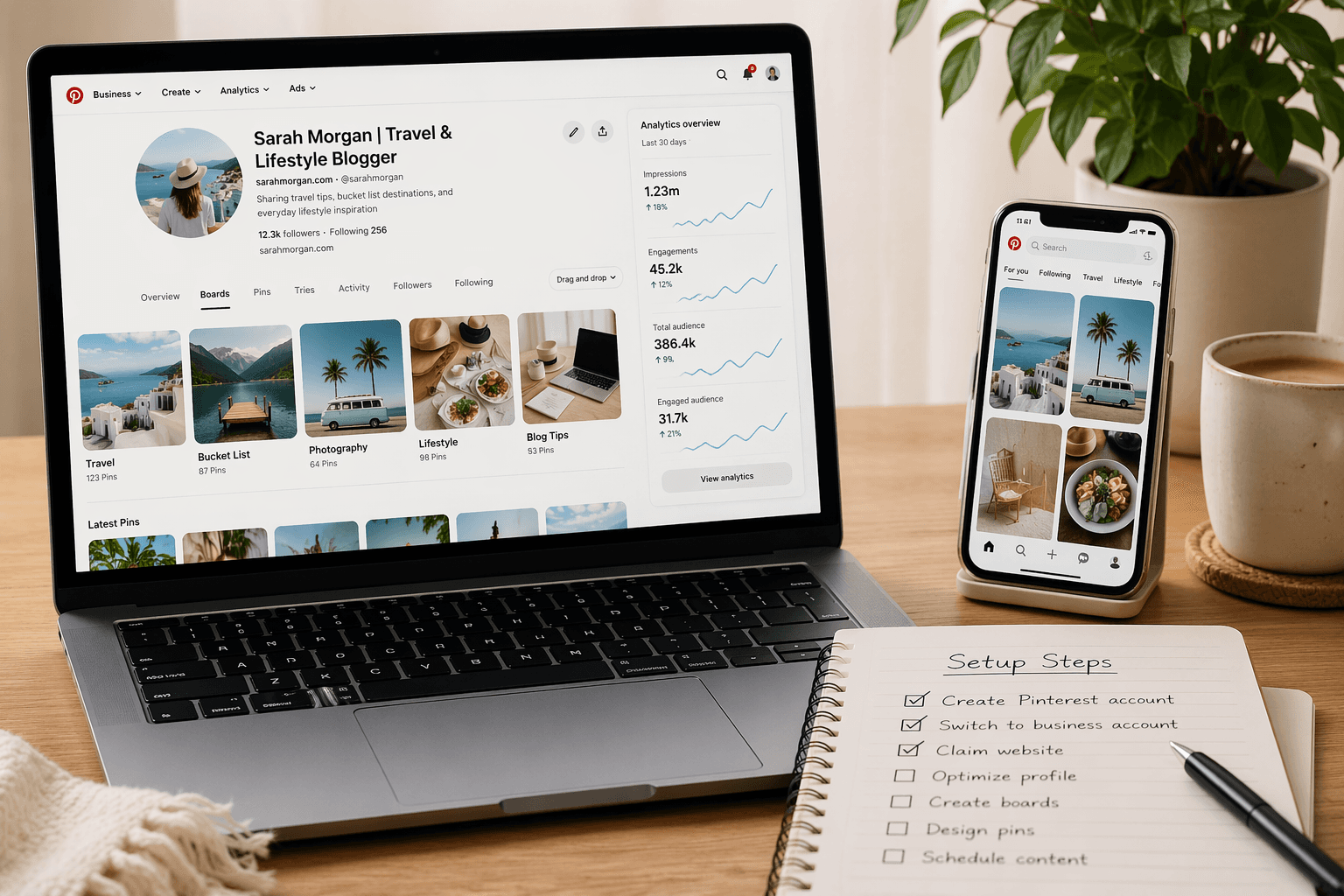
Pinterest Analytics is available immediately after converting to a business account. Go to the Analytics tab in the top navigation.
You will see four primary metrics:
Impressions: how many times your pins appeared in feeds or search results. This is the first metric to watch when your account is new. Impressions grow before clicks do. Rising impressions mean the algorithm is starting to distribute your content.
Engagements: saves, clicks, and close-ups on your pins combined. Saves are the most valuable engagement signal because they tell Pinterest that users found your content worth bookmarking.
Outbound clicks: how many times someone clicked a pin and landed on your blog. This is the number that directly translates to real blog traffic. Track it monthly.
Total audience: the number of unique users who saw your pins in a given period. This is a reach metric, not a traffic metric. A large audience with low outbound clicks means your pin design or descriptions are not converting impressions into visits.
For a brand new account, check Analytics once per week. You will not have enough data in the first two weeks to draw meaningful conclusions, but checking weekly builds the habit of reading what the algorithm is telling you. The three metrics that actually matter, and what each one tells you about the health of your account, are broken down in Pinterest Impressions vs Clicks vs Saves: What Actually Matters for Blog Traffic.
I covered what to do with this data in detail in the full Pinterest growth guide. If you want to see the month-by-month numbers from a real account, including which board broke out first and when, read: How I Got 200,000 Pinterest Impressions in Under 4 Months.
Step 7: The Profile Completeness Checklist
Before you publish your first pin, run through this list. Every item on it is a signal the algorithm uses to evaluate whether your account is legitimate and worth distributing.
Account setup:
- Business account created or converted
- Profile photo uploaded (headshot, not logo)
- Name field includes niche keywords
- Bio written with specific, searchable language
- Website URL added to profile
Website claim:
- Domain claimed and verified
- Checkmark visible next to your domain in profile settings
Board setup:
- Five to eight boards created with searchable keyword names
- Each board has a two to three sentence keyword-rich description
- Each board has ten to fifteen starter pins added
- One master blog board created and named after your site
- Boards arranged on your profile with the master blog board first
Settings:
- Country and language set to match your target audience
- Unnecessary notifications turned off
If every item on that list is checked before you publish your first pin, your account is starting from a stronger foundation than most accounts that have been running for months.
What Comes Immediately After Setup
Setting up the account correctly is the foundation. What happens in the first thirty days of pinning determines how fast the algorithm starts distributing your content.
The two most common mistakes after setup:
Publishing pins with no keyword research. A correctly configured account with pins that have generic, keyword-free descriptions will plateau quickly. Pinterest keyword research takes fifteen minutes per batch and directly determines which searches your pins appear in.
Pinning inconsistently. Pinterest evaluates accounts over time. Publishing twenty pins in one day and nothing for the next two weeks looks like spam behavior to the algorithm. A sustainable daily pinning routine, even at low volume, builds more algorithmic trust than irregular bursts.
The full system for what to pin, how many pins per day, when to switch from manual pinning to bulk CSV scheduling, and how to identify which board is gaining traction first is all documented in this guide: How I Got 200,000 Pinterest Impressions in Under 4 Months. And if you want the daily workflow, how to produce five pins per article, batch them into a week's worth of CSVs, and schedule them in under ninety minutes, How to Use Pinterest CSV Bulk Upload to Schedule Pins walks through every step.
The setup you just completed is the right starting point. What you do in the next ninety days is where the growth actually happens.
The Wrap Up
Every step in this guide exists for a reason. The bio keywords tell the algorithm what audience to show your profile to. The website claim gives you attribution on every pin linking to your domain. The board names and descriptions determine which searches your pins appear in. The starter pins give the algorithm immediate context about each board's topic.
None of these steps are optional if your goal is to use Pinterest as a real traffic source for your blog.
Set the account up once, set it up correctly, and you will not need to revisit the foundation again. Everything after this is publishing.
Kamal Deen builds niche blogs and grows them with Pinterest and SEO. All data referenced in this series is from his own accounts.