Pinterest is a mobile-first platform. Most people browse it on their phones, scrolling fast, stopping only when something earns enough screen space and visual clarity to interrupt the scroll.
The size of your pin is not a minor technical detail. It determines how much of that phone screen your content occupies. More screen space means more attention. More attention means more clicks.
This is why pin dimensions matter and why getting them right is one of the few things in Pinterest strategy that requires zero guesswork. Pinterest has told you exactly what format dominates the feed. The only question is whether you are using it.
The Format That Wins: 2:3 Vertical Ratio
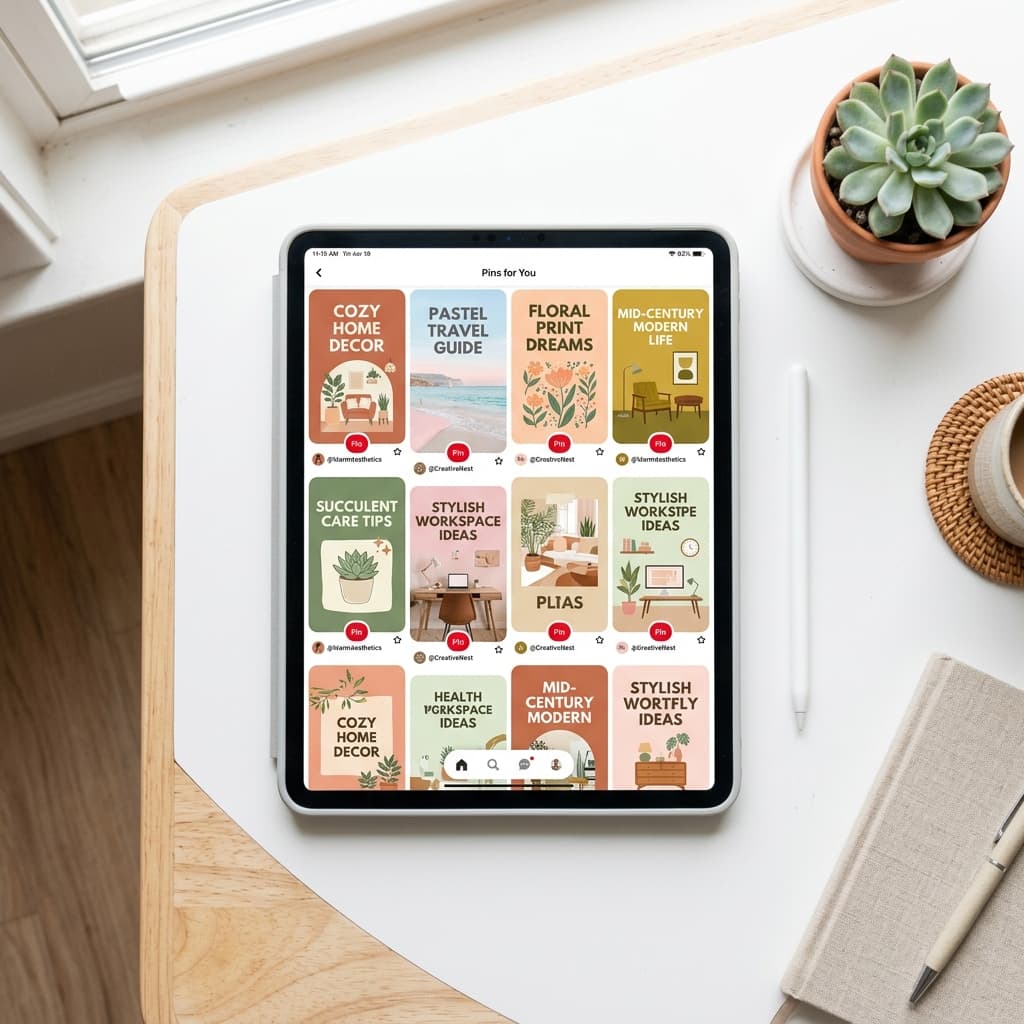
Pinterest is built around vertical pins. The feed is designed to display them. A vertical pin at the standard 2:3 ratio takes up significantly more screen real estate on a phone than a square or horizontal image.
The specific pixel dimensions I use:
1000 x 1500 pixels, The standard 2:3 format. This is what most Pinterest guides recommend and it is genuinely the safest starting point. Loads cleanly, displays well in both the home feed and search results, and Canva has a built-in Pinterest template at exactly this size.
1000 x 1800 pixels, A slightly taller variant I use regularly. More vertical height means even more screen coverage on a phone. I have found this performs comparably to the standard format across most of my boards.
1000 x 2100 pixels, The tallest format I use. Some boards and content types respond well to this. It is worth testing. The risk with very tall pins is that Pinterest sometimes crops them in certain feed placements, so if your most important text is at the very bottom, it may not always display. Keep the critical information in the upper two-thirds of tall pins.
What I do not use: Square pins (1:1) and horizontal or landscape pins. Square pins are fine for Instagram but underperform on Pinterest because they take up less vertical space. Horizontal pins are even worse. This is something I locked in from the beginning, in the first weeks of building the account that hit 200,000 monthly impressions, every pin that deviated from 2:3 underperformed. I locked the format in week three and never deviated again.
The Design Elements That Drive Clicks
Bold, readable text at a large font size
Pinterest users scroll fast. Your pin text needs to be readable in under two seconds at normal scrolling speed. Not readable if you stop and squint. Readable while moving.
This means large fonts. My pin headlines are typically 48 to 72 points in Canva depending on the length of the headline. If the headline is short, go bigger. If it is longer, size down slightly but never compromise readability for aesthetics.
High contrast between text and background
Light text on dark images. Dark text on light images. Text placed over a solid color block if the background image is busy or detailed. The rule is simple: if someone has to work even slightly to read your text, they will not. They will keep scrolling.
A specific, clear promise in the headline
Vague headlines underperform every time. "5 Vegetables That Grow in Containers" is a specific promise. "My Garden Tips" is not. The specific promise tells the viewer exactly what they are getting if they click, which is the only information they need to make that decision. The same principle that governs your pin descriptions, covered fully in How to Write Pinterest Descriptions That Actually Get Clicks, applies to your headline: specific beats vague, always.
Your URL or brand name in small text at the bottom
Not because it drives clicks directly. Because over time, pins that consistently carry your URL build brand recognition. A reader who sees your pins frequently enough starts recognizing them before they read the headline. That recognition builds trust.
One clear focal image
The background image behind your text should be immediately relevant to the headline. A pin about growing tomatoes in containers should feature tomatoes in containers, not a generic nature photo. The image and the text together should make the pin's topic obvious before the viewer reads a single word.
How I Use Canva to Build Pins
Canva Pro is what I use. The free version covers the basics but Pro gives me access to more stock photos, the background remover, and more advanced AI features that speed up production significantly.
My template library
I have about ten saved templates in my Canva account. Each template is already sized correctly, already has my brand aesthetic and color palette applied, and already has placeholder text and image areas that I swap out for each new pin. Using a template means creating a new pin is a matter of changing the headline text, swapping the background image, and adjusting the layout if needed. Done in two to three minutes per pin.
Having templates removes decision fatigue from the pin creation process. I am not redesigning from scratch every time. I am populating a proven layout with new content. This is what makes creating five pins per blog post actually achievable in a single sitting, templates bring the time per pin down far enough that the volume does not become a burden.
Using Canva AI to accelerate design
Canva has built-in AI features that can generate design suggestions, adjust layouts, and create visual elements on demand. I use them regularly. The workflow that works for me: I write the prompt in ChatGPT or Claude first (describing the aesthetic I want for this specific article topic), then bring that prompt into Canva's AI tools. The AI generates a starting point that I then customize. This is faster than starting from a blank canvas and more creative than always defaulting to saved templates.
When I use Pingenerator
For speed, I sometimes use Pingenerator, an AI tool that generates Pinterest pin designs from your article URL or a text prompt. It pulls content from the article and creates pin designs automatically. The designs are not always perfect and usually need tweaking, but they are a useful starting point when I have a large batch to get through and I want to move faster than manual Canva design allows.
The Image Sourcing Workflow
Once pins are created in Canva, I export them as PNG files to a folder on my desktop. Then I upload the entire folder to Cloudinary.
Cloudinary is a free image hosting service that gives each uploaded file a direct, permanent public URL. Those URLs go into my CSV spreadsheet for bulk scheduling. When Pinterest processes the CSV and each pin's scheduled time arrives, it fetches the image directly from the Cloudinary URL. The full CSV scheduling process, including how to structure the spreadsheet and what can go wrong, is documented in How to Use Pinterest CSV Bulk Upload to Schedule Pins.
The alternative is uploading pin images to your WordPress media library and using those file URLs. Both work. I prefer Cloudinary because it keeps pin graphics separate from my article images, which makes the WordPress media library cleaner and easier to navigate.
One important detail regardless of which hosting method you use: the URL in your CSV must be a direct link to the image file itself, ending in .jpg or .png. Not a link to a page that contains the image. Pinterest needs to be able to fetch the raw image file at the time the pin is scheduled to publish.
What Makes Pins Underperform
Script and decorative fonts that look elegant in a design tool but become illegible at scrolling speed. Save those fonts for headings on your website. Pinterest pins need clean, bold sans-serif fonts.
Dark, underexposed images where the subject is hard to identify quickly. If you have to look at an image for three seconds before understanding what it shows, it will not stop a scroll.
Too much text that turns the pin into a reading exercise. Your pin is not an article. It is an ad for an article. The text should make someone want to read more, not try to give them everything upfront.
Inconsistent design across pins that makes your account unrecognizable. When someone saves one of your pins and comes back to your profile, they should be able to identify your content immediately by visual style. Consistency builds recognition. Variety kills it.
Images that do not match the headline where the visual and the text are telling different stories. If your headline says "5 Raised Bed Mistakes Beginners Make" and your image is a generic sunset over a field, the mismatch is immediately apparent and it erodes trust.
The Full Design Workflow in Summary
Create in Canva using your saved templates and AI tools for speed. Export as PNG. Upload to Cloudinary. Copy the URL into your CSV spreadsheet. Schedule via Pinterest's native bulk upload tool.
That is the pipeline from idea to published pin. Once the workflow is set up and your templates are built, the production phase for a week of pins (70 pins at 10 per day) takes about sixty to ninety minutes from start to scheduled upload.
Kamal Deen builds niche blogs and grows them with Pinterest and SEO.